Networking
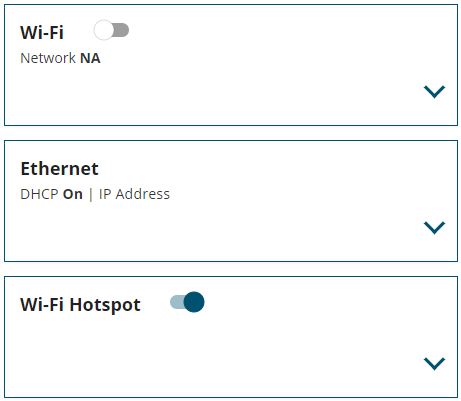
Use the Network page to configure the Wi-Fi and Ethernet interfaces on the receiver. Manage (Web) only shows the interfaces that are available on the receiver.
Wi-Fi
Click the Wi-Fi bar to open the Wi-Fi tile.
Use the Wi-Fi tile to configure the receiver to connect to a Wi-Fi access point.
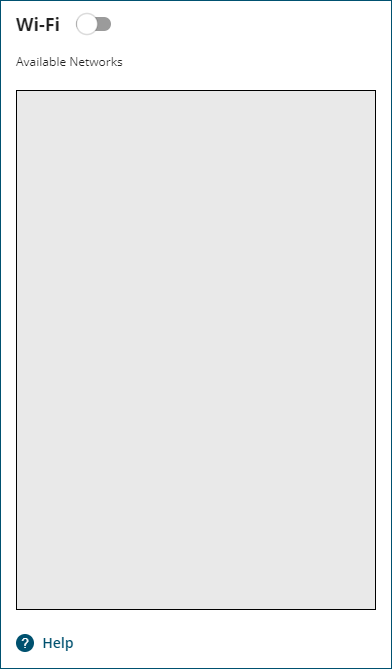
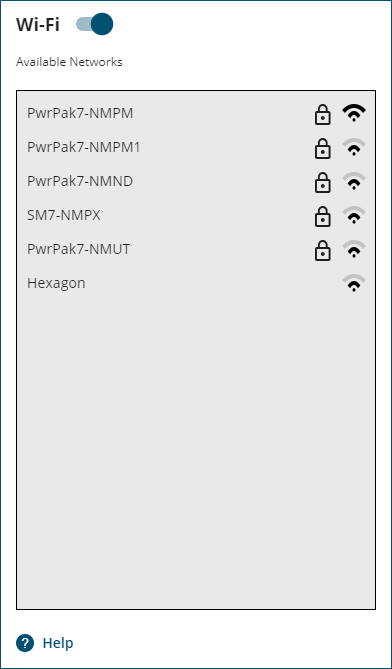
Off/On
Set the Wi-Fi switch to On  )
)
Set the Wi-Fi switch to Off  )
)
Available Networks
The Available Networks box displays the Wi-Fi access points (hotspots) the receiver has detected.
Click the access point to which you want the receiver to connect. If the access point is secured, and this is the first time the receiver has attempted to connect, an access dialog box appears. Enter the user name and password for the selected Wi-Fi access point and click Connect.
When the receiver makes a connection to an access point, the connection details are stored on the receiver. Up to four access points are stored on the receiver. When the receiver gets into range of a stored access point, it will automatically connect.
To remove an access point from receiver memory:
-
Click the X button on the access point. A dialog box appears.
-
Click Yes.
NovAtel Application Suite does not support configuring the Wi-Fi interface on the MarinePak7.
Ethernet
Click the Ethernet bar to open the Ethernet tile.
Use the Ethernet tile to configure the Ethernet interface on the receiver.
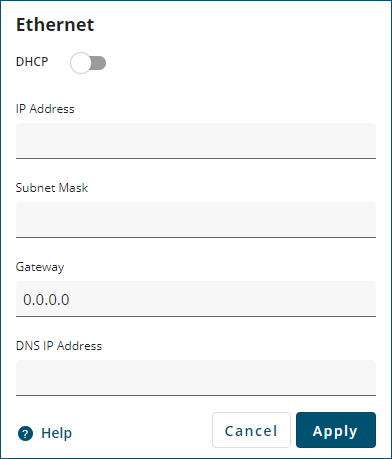
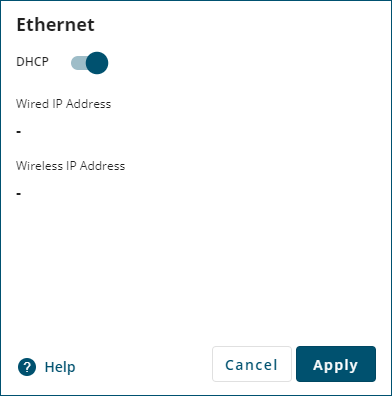
If the receiver is connected to a network that uses DHCP:
-
Set the DHCP switch to On
) -
Click the Apply button.
The IP Address field displays the IP address assigned to the receiver.
If the receiver is being configured to use a static IP address:
-
Set the DHCP switch to Off
) -
In the IP Address box, enter the IP address for the receiver.
-
In the Subnet Mask box, enter the subnet mask for the receiver.
-
In the Gateway box, enter the IP address of the gateway.
-
In the DNS IP Address box, enter the IP address of the primary DNS server.
-
Click the Apply button.
Wi-Fi Hotspot
Click the Wi-Fi Hotspot bar to open the Wi-Fi Hotspot window.
Use the Wi-Fi Hotspot window to configure the receiver to function as a Wi-Fi hotspot (access point). Devices, such as the device used to run Manage (Web), can then access the receiver using Wi-Fi.
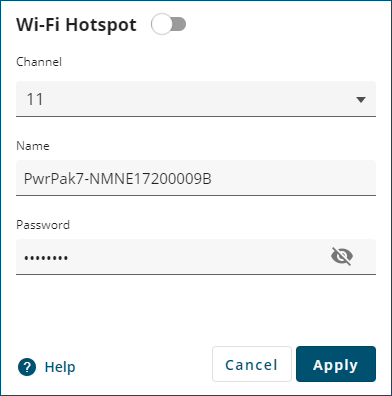
Wi-Fi Hotspot
Use the Wi-Fi Hotspot switch to enable or disable the Wi-Fi hotspot hosted by the receiver.
If you disable the Wi-Fi hotspot, Manage (Web) will not be able to access the receiver using Wi-Fi.
Channel
This parameter sets the 802.11 channel that the Wi-Fi hotspot uses.
To change the 802.11 channel used, click the Channel drop list and select the new channel.
Name
This parameter is the SSID that the receiver broadcasts from the Wi-Fi hotspot.
To change the SSID, enter the new SSID in the Name box. The SSID can be up to 33 characters long.
Password
This parameter is the password that Wi-Fi clients must enter to access the receiver's Wi-Fi hotspot.
To change the password, enter the new password in the Password box.
-
The password must be between 8 and 64 characters long.
-
The password can contain upper case letters, lower case letters, numbers, punctuation and some symbols. Specifically, any ASCII character from SPACE (decimal 32, hex 0x20) to TILDE (decimal 126, hex 0x7E) except QUOTE (decimal 34, hex 0x22).
For your security, it is highly recommended that you change the Wi-Fi Hotspot password to protect your account and ensure your information remains secure.
NovAtel Application Suite does not support configuring the Wi-Fi interface on the MarinePak7.
Click Apply to save the Wi-Fi Hotspot changes to the receiver.