Manage Web Home Page
After opening Manage Web, the Home page appears. From the Home page you can access all of the Manage Web features.
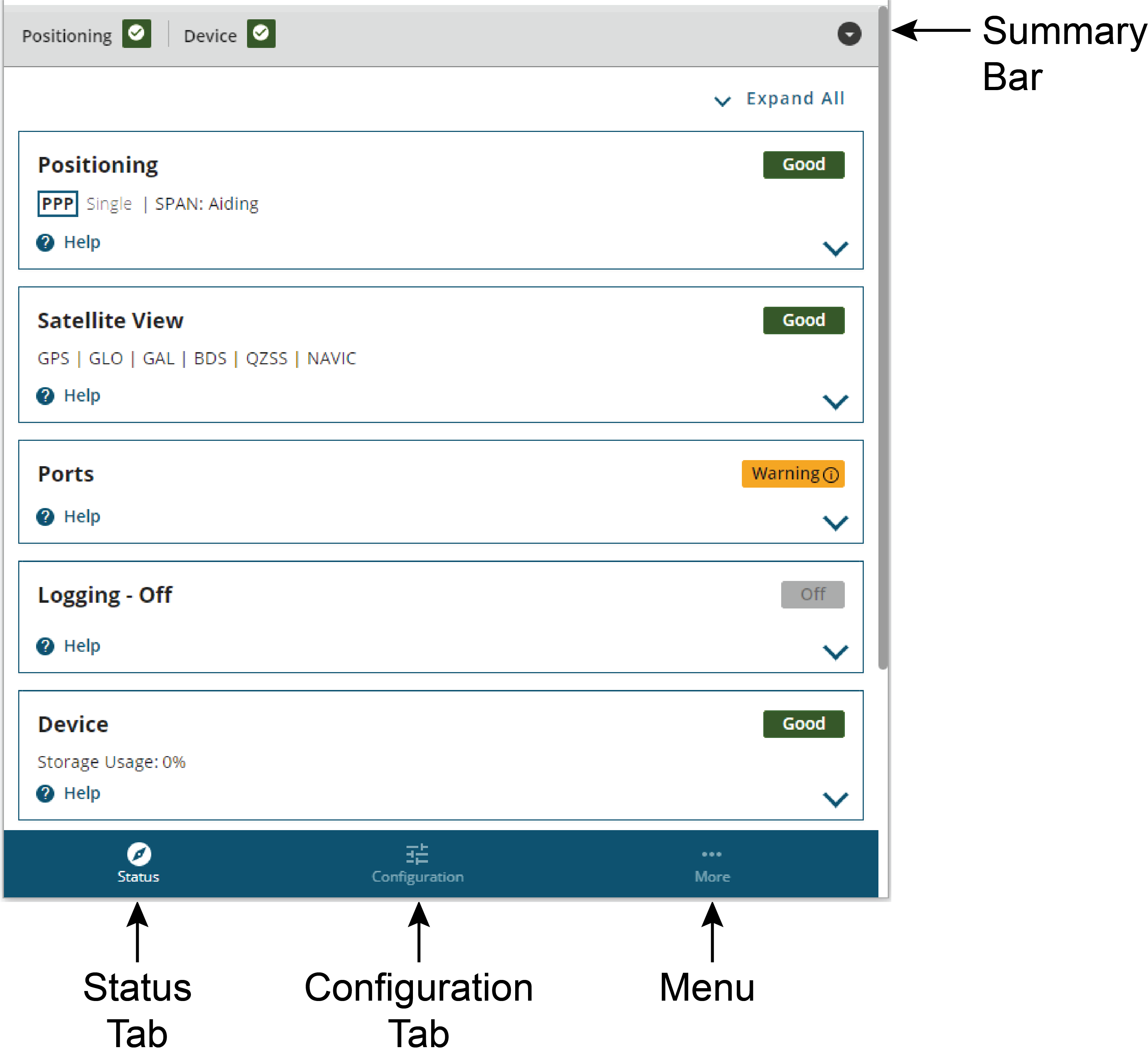
Summary Bar
The Summary bar appears on all Manage Web pages and provides status information about the receiver. The information is shown in two parts. Swipe the Summary bar left or right to switch between the parts.
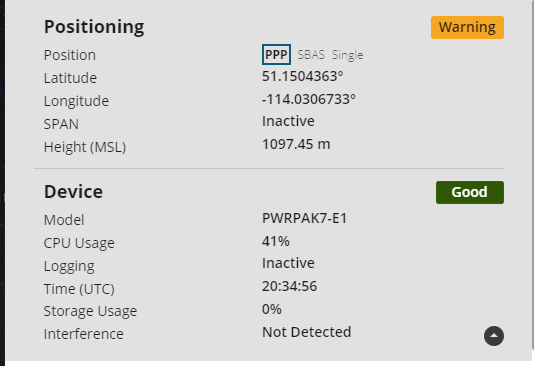
Status Indicator
A coloured bar with text indicates the status of the summary information shown.
|
Colour |
Text |
Description |
|---|---|---|
|
Green |
Good |
The receiver is functioning and there are no warnings or errors. |
|
Amber |
Warning |
The receiver is functioning, but there are one or more issues that may require attention. |
|
Red |
Error |
An issue is preventing the receiver from functioning. The Error state will remain until the situation is resolved. |
If the receiver has a warning or error, go to the Status tab and scroll through the status bars. An amber or red status indicator appears on the status bars where more information about the warning or error can be found. See Status Window for more information.
Position (Pos)
The Position field shows all of the positioning types available on the receiver. The positioning type that is currently being used to calculate the position is highlighted in a box.
Latitude (Lat)
The Latitude field shows the latitude of the calculated position in degrees.
Longitude (Long)
The Longitude field shows the longitude of the calculated position in degrees.
SPAN
The SPAN field shows the status of SPAN GNSS+INS technology.
Height
The Height field shows the height above mean sea level of the calculated position in metres.
Model
The Model field shows the receiver type.
CPU Usage
The CPU Usage field shows the amount of receiver computing (CPU) power currently being used.
Logging
The Logging field shows the status of logging to the receiver's internal memory.
Time
The Time field shows the current UTC time.
Storage Usage
The Storage Usage field shows the amount of receiver internal memory that has been used.
Interference
The Interference field indicates if the receiver has detected interference in the GNSS signal.
Status Tab
Click Status to view the Status tab. From the Status tab, all of the Status windows available for the receiver can be viewed. For information about the Status tab, see Status Window.
Configuration Tab
Click Configuration to view the Configuration tab. From the Configuration tab, all of the Configuration windows available to the receiver can be viewed. For information about the Configuration tab, see Configuration Window.