Add a Device – serial connection
This type of Device is used for a receiver that is connected to the Manage computer using a serial (COM) port.
-
Click the Add Device button.
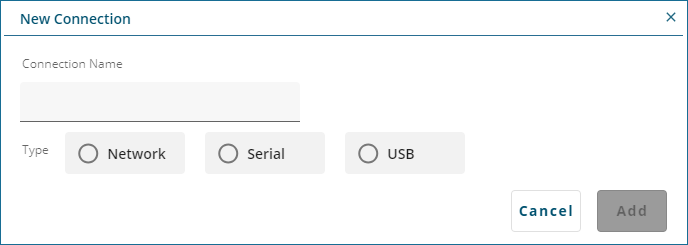
The New Connection dialog box opens.
-
In the Connection Name box, enter a name for the Device.
This name is used to identify this Device on the Devices window and on the Status and Configuration windows.
-
Click the Serial button.
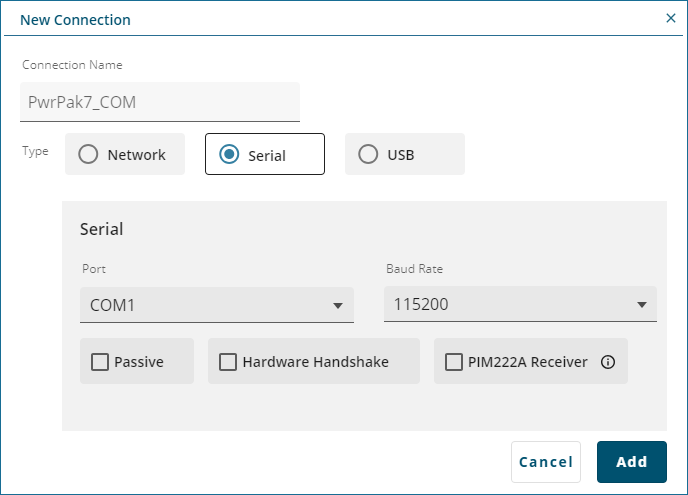
The New Connection dialog box expands to show the serial connection parameters.
-
Click the Port drop menu and select the COM port the computer uses to connect to the receiver.
-
Click the Baud Rate drop menu and select the baud rate used to communicate with the receiver.
If Auto is selected, Manage will establish a connection at the highest baud rate available.
Baud rates higher than 115,200 bps are not supported by standard PC hardware. Special PC hardware may be required for higher rates, including 230400 bps and 460800 bps.
-
Use the Passive option to enable or disable Passive mode. Passive mode is used to avoid disruptions to logging or port configurations.
If the Passive option is selected, Manage attempts to communicate with the receiver at the specified baud rate. The baud rate selected must match the baud rate configured on the receiver COM port. The AUTO baud rate option can not be used when Passive is enabled.
If the Passive option is cleared, signal breaks are sent over the COM port and the receiver is configured to communicate at the specified baud rate. If Passive is disabled, all previously requested logs on that port will be stopped
-
Use the Hardware Handshake option to enable or disable hardware handshaking.
If the Hardware Handshake option is selected, the computer will use the CTS and RTS hardware signals to control data flow.
If the Hardware Handshake option is cleared, the computer does not use the CTS and RTS signals.
Not all receiver ports support the CTS and RTS signals. Do not enable hardware handshaking unless the receiver port supports CTS and RTS and handshaking is enabled on the receiver port.
If the new Device is a PIM222A receiver, you must select the PIM222A Receiver option to ensure the correct communication parameters are set.
-
Click the Add button.
A new Device labelled with the name entered in the Connection Name box is added to the Devices window.