Logging to a file in NovAtel Connect 2.3
|
Platform: |
OEM719, OEM729, OEM7500, OEM7600, OEM7700, OEM7720, PwrPak7, CPT7, CPT7700, SMART7, SMART2 |
This procedure describes how to use the command console in NovAtel Connect 2.3.x to save incoming data to File.
-
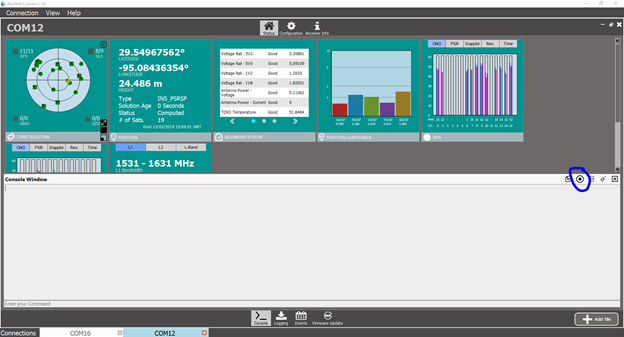
Open NovAtel Connect and navigate to the Console window.
-
Select the Save All Incoming Data to File button.
-
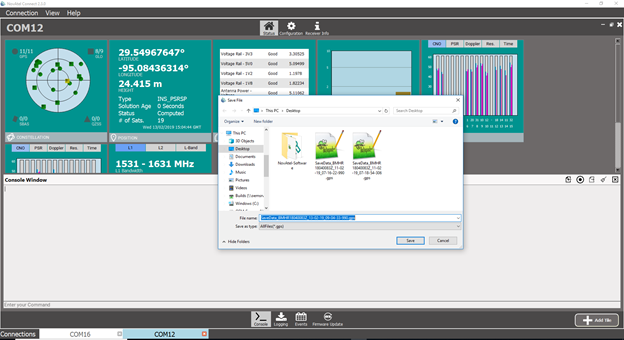
Select a location and filename.
-
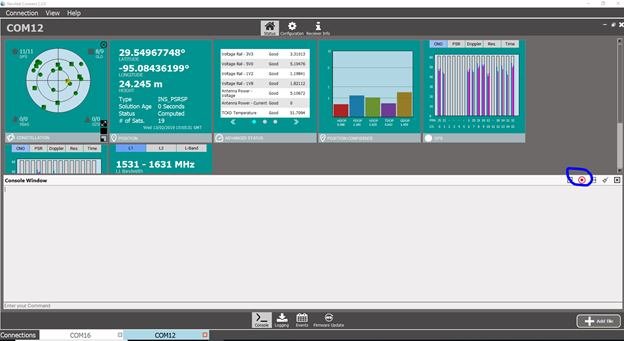
The icon changes color to red to indicate that the incoming data is ready to be saved.
-
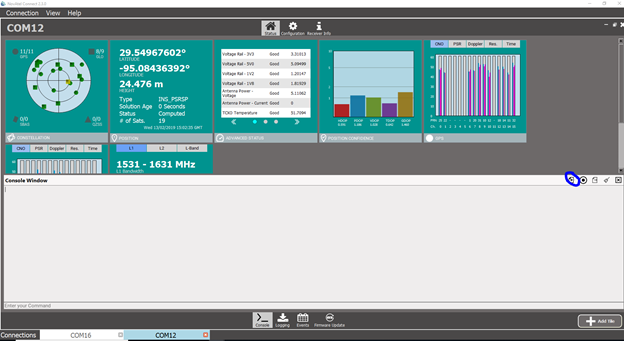
Load the batch file by selecting the Import Commands from File button.
-
Select the file to load and click the Open button.
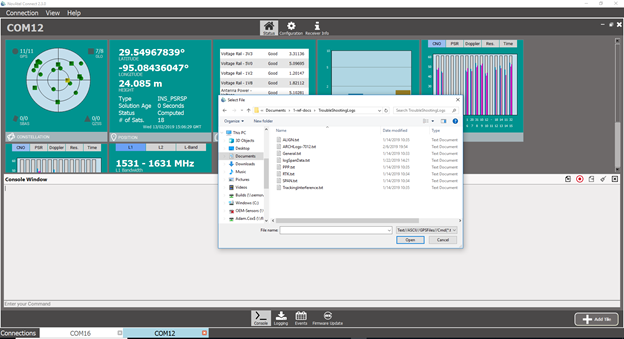
-
Any ASCII data will be logged to the Console and to the file. Any BINARY data will be logged directly to file.
-
To STOP logging click the Save Incoming Data to File button again and then type UNLOGALL to remove all loaded logs.